Increased awareness
Move your head and eyes to control the in-game camera and boost your situational and spatial awareness.
6DoF support
We've got your back!
Native Integration
Starting with X-Plane 12.4.0 (C-Check Update), Tobii Eye Tracker 5 works natively. No extra software needed.
Important! If a Tobii plugin is still in your X-Plane 12 plugins folder, native integration won’t work. Remove the plugin to enable native support. See Game Hub is NOT required below for details.
Set up Tobii in X-Plane 12
Make sure you’re running X-Plane 12.4.0 (currently in beta).
Set up Tobii Eye Tracker 5:
- Go to Settings > VR and Head Tracking.
- Under Head Tracking Settings, select Enable Tobii Eye Tracker.
- Adjust Tobii settings on the right side of the menu.
Fix camera position
If the camera is outside the cockpit, reset Tobii Head Tracking:
- Go to Settings > VR and Head Tracking > Tobii Eye Tracker.
- Select Reset Tobii Head Tracking Now.
Set keyboard shortcuts
To create Tobii shortcuts:
- Open Settings > Keyboard.
- Search for “Tobii” or go to All > Operation > Head Tracking.
- Assign shortcuts for:
- Pause Tobii Head Tracking
- Reset Tobii Head Tracking
Game Hub is NOT required
If you’re running X-Plane 12.4.0 or higher, you don’t need Tobii Game Hub for tracking.
Remove the old plugin
If you used Tobii Game Hub before, X-Plane will show this warning:
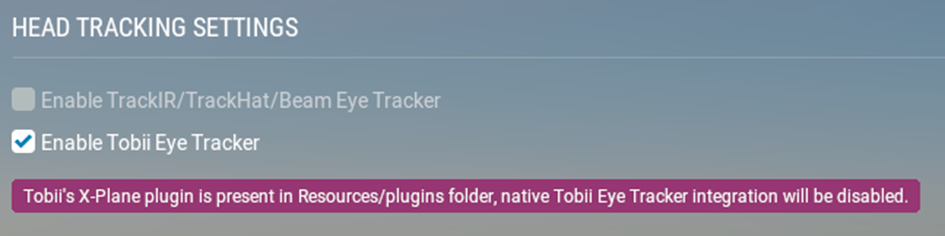
To fix this:
- Go to X-Plane 12\Resources\plugins
- Delete the folder TobiiPlugin
Can I still use Game Hub?
Yes. If you prefer, you can keep using Tobii Game Hub. When the plugin is installed, native integration is disabled. You can download the latest version here. To learn more about the customization settings, read more.
Game Hub offers advanced settings like:
- Center view on disable toggle
- Head rotation limits per axis
- Sensitivity and curves (mirrored or separate)
- Position limits to reduce clipping
- Eye-only camera control
Note: The X-Camera plugin only works with Tobii Game Hub.
Why choose native integration over Tobii Game Hub?
In short: better performance and a simpler experience.
Native integration is:
- Faster and more responsive
- No extra app to run
- Settings available directly in X-Plane
Game Hub still offers extra customization (see above) if you need it.
Screen size recommendation
Head tracking works with any screen size as long as the tracker isn’t blocked.
For eye tracking:
- Up to 27" for 16:9 screens
- Up to 30" for 21:9 screens
Positioning with yokes or throttles
If you use a yoke or throttle, make sure the Tobii Eye Tracker 5 has a clear view of your head.
Important: The eye tracker cannot be mounted on top of the screen.
We know you won't use a steering wheel, but it is the same principle. 🤓
Features
Extended View
Keep your hands on the controls while moving the in-game camera with head and eye movements. When you select “Enable Tobii Eye Tracker” in the X-Plane 12 settings menu, Extended View will be active.
Camera boost
Camera Boost makes Extended View feel more natural. When you turn your head toward the edge of the screen, the camera turns further, following your instinct.
- Increase boost value: Adjust the Camera Boost setting to change how much extra rotation is added when you look toward the screen edge.
- Set the deadzone: Choose how far from the center you need to look before the boost starts. The maximum boost applies at the screen edge.
- Fine-tune sensitivity: Adjust yaw, pitch, roll, and position sensitivity separately. Position sensitivity controls how much the camera reacts when you move in 3D space—leaning forward, backward, or side to side.
Check out our article to learn more about what Camera Boost is.
X-Camera plugin
X-Camera replaces the default camera system in X-Plane. It works with Tobii Game Hub but not with native integration (12.4.0). We’re working with Stick and Rudder Studios and Laminar Research to fix this.
X-Camera remains compatible with X-Plane 12 when you’re using Tobii Game Hub, and the Tobii plugin for X-Plane.
Important! If you need X-Camera, use Tobii Game Hub v3.3 or newer.
If you encounter any issues with X-Camera, please reach out to support here.
Still stuck?
If tracking doesn’t work, don’t worry—reach out to us and we’ll help you get flying. 😊
Comments
0 comments
Please sign in to leave a comment.